
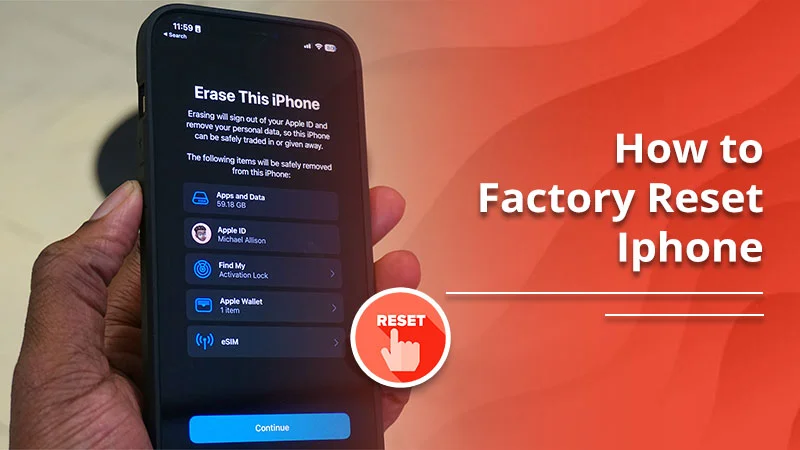
If your iPhone has started acting strange, running slow or freezing for no reason, a factory reset is often the best fix. It clears out everything and gives the phone a fresh start. Many people also reset their device before selling it or passing it to someone else. Whatever your reason is, the process is much easier than it sounds.
This guide walks you through everything you need to know. You’ll learn what a factory reset actually does, when you should use it, how to back up your data and all the different ways to reset your iPhone. The goal is simple: make sure you do it safely and without losing anything important.
Key Takeways
- A factory reset wipes your iPhone completely and restores it to its original state.
- Always back up your data before resetting.
- Sign out of your Apple ID and turn off Find My iPhone to avoid Activation Lock.
- You can reset your iPhone through Settings if the device is working normally.
- If the phone is frozen or locked, use a computer (Finder or iTunes) to reset it.
- Recovery mode is the only option if you forgot your passcode.
- After the reset, you can restore your backup or set up the device as new.
What a Factory Reset Actually Does
A factory reset erases everything on your iPhone. This includes:
- Photos and videos
- Contacts
- Messages
- Installed apps
- Login details
- Saved settings
- Face ID or Touch ID
- Apple Pay
- Browsing data
After the reset, your phone looks the same as it did on the first day you bought it.
It is important to understand that a restart or force restart is not the same. Those only reboot the phone. A factory reset wipes your data completely.
When You Should Factory Reset Your iPhone
You do not need to reset your phone every time something small goes wrong. But there are certain situations where it helps.
1. Your phone has become slow
A fresh reset clears out hidden files and junk that builds up over time.
2. Apps keep crashing
If apps freeze, crash or behave strangely, a reset can fix deeper software issues.
3. You’re selling the phone
This protects your privacy and removes your personal data.
4. You forgot your passcode
You can still reset it through a computer.
5. The phone is stuck on the Apple logo
Resetting through recovery mode usually solves this.
6. Your battery drains too fast
Sometimes a clean setup helps fix performance problems.
7. You just want a clean start
A reset helps if your phone feels cluttered.
Things You Must Do Before Resetting
A factory reset cannot be undone. So make sure you prepare your device properly.
1. Back Up Your Data
Choose either iCloud or a computer backup.
iCloud Backup
-
Connect to Wi-Fi.
-
Open Settings.
-
Tap your name.
-
Select iCloud.
-
Tap iCloud Backup.
-
Turn on Back Up This iPhone.
-
Tap Back Up Now.
This stores your photos, messages and most app data online.
Computer Backup (Finder or iTunes)
-
Connect your iPhone to your computer.
-
Open Finder (Mac) or iTunes (Windows).
-
Select your device.
-
Choose Back Up Now.
A computer backup is faster and more complete.
2. Sign Out of Your Apple ID
Many users skip this step and end up stuck with Activation Lock.
- Open Settings.
- Tap your name.
- Scroll down.
- Tap Sign Out.
- Enter your Apple ID password.
3. Turn Off Find My iPhone
This must be off to reset the device fully.
- Open Settings.
- Tap your name.
- Select Find My.
- Turn off Find My iPhone.
- Enter your Apple ID password.
4. Charge Your Phone
Make sure your battery is above 50 percent or keep the phone connected to a charger.
How to Factory Reset an iPhone From Settings
If your phone is working normally, this is the easiest method.
- Open Settings.
- Tap General.
- Select Transfer or Reset iPhone.
- Tap Erase All Content and Settings.
- Enter your passcode.
- Confirm the reset.
Your iPhone will restart and wipe everything. When it turns back on, you will see the Hello screen.
How to Reset an iPhone Using a Computer
Use this method if:
-
Your phone is locked
-
The screen is frozen
-
Settings are not opening
-
The phone is stuck on the Apple logo
Steps
-
Connect the iPhone to your computer.
-
Open Finder or iTunes.
-
Select your device.
-
Click Restore iPhone.
-
Confirm the action.
This installs a fresh version of iOS and removes all data.
How to Factory Reset an iPhone Without a Passcode
If you cannot remember your passcode, recovery mode is the solution.
Step 1: Turn Off the Phone
Use the button combination for your model.
Step 2: Enter Recovery Mode
iPhone 8 or later
Hold the Side button while connecting your phone to the computer.
iPhone 7 and 7 Plus
Hold the Volume Down and Side button together while connecting.
iPhone 6s and earlier
Hold the Home button while connecting.
Keep holding until you see the recovery mode screen.
Step 3: Restore Through the Computer
- Open Finder or iTunes.
- You will see a message saying there is a problem with the iPhone.
- Click Restore.
This will erase everything and reinstall iOS.
How Long the Reset Takes
The time varies:
- Standard reset: 3 to 10 minutes
- Computer restore: 15 to 30 minutes
- Recovery mode: up to 1 hour depending on internet speed
What Happens After the Reset
Once your device resets, you will see the setup screen. You can now:
- Restore from iCloud
- Restore from a computer backup
- Or set it up as a new device
Everything will be fresh and clean.
Helpful Things to Do After Resetting
Update your phone
Install the latest iOS version for better performance.
Restore your backup
Choose iCloud or a computer backup.
Set up Face ID or Touch ID
This is important for security.
Reinstall apps manually
Avoid reinstalling everything if you want your phone to stay faster.
Check iCloud settings
Make sure syncing is working properly.
Common Issues and Fixes
The phone asks for your Apple ID after reset
This happens when Activation Lock is still enabled. Enter the same Apple ID.
iTunes does not detect your iPhone
Try a different USB cable or port.
The phone is stuck on the Apple logo
Use recovery mode and restore again.
You cannot turn off Find My
Sign out of Apple ID first.
Other Ways to Erase Your iPhone
1. From iCloud
- Go to iCloud.com.
- Log in.
- Open Find Devices.
- Select your iPhone.
- Choose Erase iPhone.
2. From Another Apple Device
- Open the Find My app.
- Select your iPhone.
- Tap Erase This Device.
Final Thoughts
Resetting an iPhone sounds complicated but becomes easy once you know the steps. As long as you back up your data and sign out of your Apple ID, the process is smooth and safe. Whether you are fixing bugs, cleaning your phone or preparing it for sale, a factory reset gives your device a clean start.